
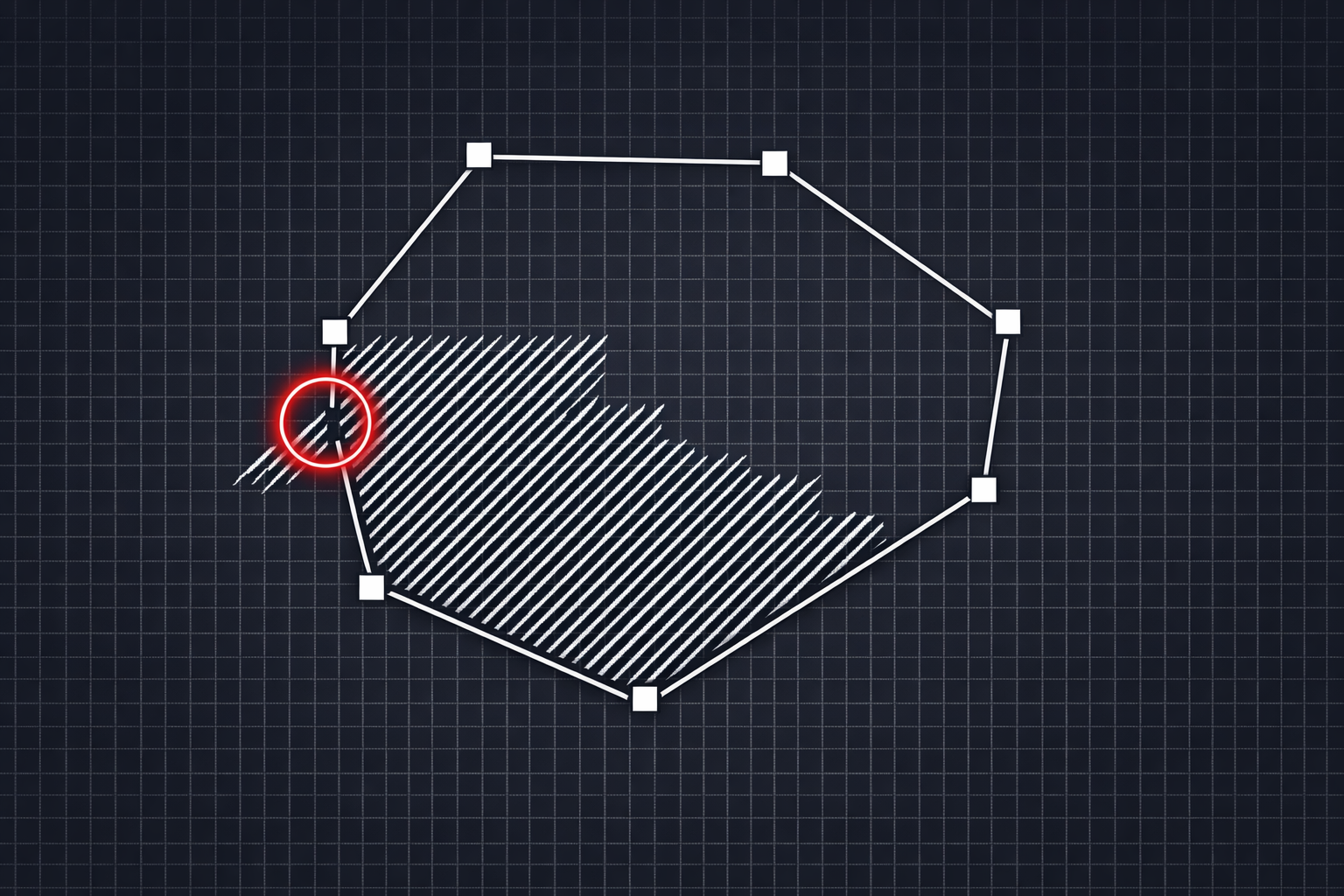
You click inside your boundary. You pick the hatch pattern. You hit OK. And nothing happens. Or worse, the hatch fills the entire drawing -- every square inch of model space -- and AutoCAD grinds to a halt while you frantically mash Escape.
If you have spent any real time in AutoCAD, you have been here. I have been doing this for over a decade in machining and fabrication work, and I still run into hatch problems on drawings that look perfectly fine. The boundary appears closed. The geometry looks connected. But AutoCAD disagrees, and AutoCAD does not care about your deadline.
The good news is that hatch failures almost always come down to one thing: a gap in your boundary. The bad news is that finding that gap can eat up your entire afternoon. Let me walk through why this happens, the manual fixes that sometimes work, and what to do when they do not.
Why Hatches Fail: The Closed Boundary Rule
AutoCAD's hatch command needs a fully enclosed area to fill. That is not a suggestion -- it is a hard requirement. The algorithm traces around your boundary looking for a continuous loop. If it finds one, it fills the enclosed region. If it does not, it either fails silently, throws a "boundary is not closed" error, or decides that the entire drawing is the boundary and tries to hatch everything.
Here is the thing most people do not realize: the gap does not have to be visible. A gap of 0.001 units -- that is one thousandth of whatever your drawing units are -- is enough to break the hatch. On a drawing where your geometry spans thousands of units, a gap that small is completely invisible at any reasonable zoom level. You could zoom in ten times and still not see it.
Think about it from AutoCAD's perspective. The software is tracing from endpoint to endpoint. When it reaches a point where the next entity's start point does not exactly match the current entity's end point, the trace stops. It does not matter if the gap is 100 units or 0.0001 units. A gap is a gap.
The Most Common Causes
Over the years, I have seen hatch boundaries break for a handful of recurring reasons. If your hatch is not working, one of these is almost certainly the culprit.
Gaps at corners and intersections
This is the most common one. Two lines that should meet at a corner but actually stop short by a tiny amount. It happens when you are drawing fast, when you miss an OSNAP, or when you are trimming geometry and the trim does not extend all the way to the intersection. On a complex profile with dozens of line segments and arcs, you might have perfect geometry at 49 corners and one gap at the 50th.
Overlapping entities at the same location
Sometimes the problem is not a gap but the opposite -- duplicate geometry stacked on top of itself. Two lines occupying the same space can confuse the boundary detection because AutoCAD sees four endpoints where there should be two. It traces one line, arrives at the endpoint, and finds two possible paths forward. Depending on how the algorithm resolves that ambiguity, you might get a failed hatch or a hatch that only fills part of the region.
Entities on different elevations
This one is sneaky. In 2D drawings, you would think elevation does not matter. But if one line segment has a Z-value of 0 and the adjacent segment has a Z-value of 0.0005, they are not connected in 3D space. AutoCAD's hatch boundary detection works in 3D, so even in a "flat" drawing, mismatched Z-values create gaps. I have seen this happen a lot with drawings that were exported from Inventor or SolidWorks and then modified in AutoCAD.
Arc and line connection mismatches
Where a line meets an arc, the connection point has to be mathematically exact. Arcs are defined by center, radius, and start/end angles. Lines are defined by two points. If the line's endpoint was placed by clicking near the arc's endpoint rather than snapping to it, you get a gap. The visual representation might look fine because both entities are drawn to the same pixel on screen. But the actual coordinate values are different.
Finding the Gap Manually
Alright, so your hatch is broken and you know there is a gap somewhere. How do you find it?
The brute-force approach is to zoom into every corner and intersection of your boundary and check whether the endpoints actually meet. Turn on ENDPOINT osnap, hover over each junction, and see if AutoCAD shows one snap point or two. If you see two snap markers close together instead of one, you found your gap.
On a simple rectangle, this takes thirty seconds. On a machining profile with 80 segments -- lines, arcs, fillets, chamfers -- this takes a long time. I have spent 45 minutes zooming around a complex profile looking for a single gap. When you finally find it and the gap is 0.0003 units, you start to question your career choices.
Another approach is to use the BOUNDARY command (or BO) instead of HATCH. The BOUNDARY command tries to create a region or polyline from a detected boundary. If it fails, it at least narrows down which area of the boundary has the problem, because it tends to create partial boundaries up to the point of failure. But it does not tell you exactly where the gap is, and on complex geometry it can be just as unhelpful as the hatch command itself.
Quick Manual Fixes
Once you think you have found the gap, here are the go-to manual fixes. These are the first things I try, and they solve maybe 60-70% of cases.
PEDIT JOIN
Select all the entities in your boundary, type PEDIT, select Multiple, then Join. AutoCAD will attempt to join all the segments into a single polyline. If it succeeds, your boundary is now a single closed polyline and the hatch will work.
The catch: PEDIT JOIN has a fuzz factor -- a tolerance for how large a gap it will bridge. The default is 0. If your gap is larger than the fuzz factor, the join fails and the segments remain separate. You can increase the fuzz factor, but if you set it too high, AutoCAD starts connecting things that should not be connected, distorting your geometry. I will talk more about this trap in a minute.
FILLET with radius 0
The FILLET command with a radius of 0 extends two lines to their intersection point. If you have two lines that almost meet at a corner, FILLET 0 closes the gap by extending both lines until they intersect. This works great for simple cases -- two lines that should meet at a point but stop short.
Where it does not work: when the gap is between a line and an arc, or between two arcs. FILLET with radius 0 between a line and an arc often does not produce the result you expect, especially if the line is not tangent to the arc.
EXTEND and TRIM
Select the boundary edge you want to extend to, then select the entity that falls short. EXTEND pushes it to the intersection. TRIM does the opposite for overlapping geometry.
These work well when you can see the problem. They do not help when you cannot find the gap in the first place.
The Hidden Problem: Micro-Gaps
Here is where things get really frustrating. You have zoomed into every corner. Everything looks connected. PEDIT JOIN with a fuzz factor of 0 fails, but a fuzz factor of 0.001 succeeds. That means there is a gap somewhere between 0 and 0.001 units. But you cannot see it. Your screen literally does not have enough pixels to display a gap that small at any zoom level that shows meaningful context.
These micro-gaps are the number one reason people search "AutoCAD hatch not working" and end up reading forums for an hour. The hatch fails. The boundary looks closed. Every manual check says the geometry is fine. But there is a gap of 0.00015 units at some junction deep in the profile, and you will never find it by eye.
Micro-gaps typically come from one of three sources:
- Floating-point precision -- AutoCAD stores coordinates as double-precision floating-point numbers. When you perform operations like OFFSET, MIRROR, or ROTATE, the calculated endpoint might differ from the mathematically exact value by a tiny amount. That tiny amount is your micro-gap.
- File format conversions -- DXF/DWG imports and exports, especially between different CAD systems, can introduce precision errors. A coordinate that was 12.50000000 in the source system might become 12.49999997 in AutoCAD.
- Copy/paste and block insertion -- When you copy geometry from one drawing to another or insert a block, coordinate precision can shift slightly, especially if the drawings use different unit systems or precision settings.
The frustrating part is that these gaps are real -- they genuinely prevent the boundary from closing -- but they are too small to detect visually. You need a different approach.
Automated Gap Detection
This is the problem that led us to build GapDetector. After years of manually hunting for gaps -- sometimes spending longer finding the gap than actually drawing the part -- we decided to automate the process.
The idea is straightforward: scan every entity endpoint in your selection, compare each endpoint against every other endpoint within a configurable tolerance, and report exactly where the gaps are. Not "somewhere in this region" but the exact coordinates, the exact entities involved, and the exact size of the gap.
GapDetector classifies what it finds into categories -- true gaps where endpoints do not meet, micro-gaps below a visual threshold, overlapping segments, and misaligned arc connections. Each gap gets a marker placed directly on the drawing so you can zoom right to it. No more guessing, no more methodical zooming around the entire profile.
For the hatch problem specifically, the workflow becomes: select your boundary, run the gap check, see exactly where the gaps are, fix them, hatch. What used to be a 45-minute frustration becomes a one-minute task.
The Fuzz Factor Trap
I mentioned PEDIT JOIN's fuzz factor earlier, and it deserves its own section because I see people get burned by this constantly.
When PEDIT JOIN with the default tolerance of 0 fails, the natural instinct is to increase the fuzz factor. Set it to 0.01, try again. Still fails? Set it to 0.1. Still fails? Set it to 1.0.
The problem is that a fuzz factor of 1.0 tells AutoCAD "connect any endpoints that are within 1 unit of each other." On a machining drawing with tight tolerances, that can bridge gaps that are actually intentional -- separate profiles that should not be joined, relief cuts, slot boundaries. I have seen people accidentally merge two separate part profiles into one because the fuzz factor was set too high.
Even if you do not bridge separate profiles, a high fuzz factor distorts geometry. If endpoint A is at (10.000, 5.000) and endpoint B is at (10.003, 5.001), a fuzz factor of 0.01 will connect them by moving one or both points. That 0.003-unit shift might not matter for a hatch, but if this is a profile that goes to a CNC machine, you just introduced a dimensional error.
The better approach is to find the actual gap first, understand how large it is, and then decide the right fix. Sometimes the fix is PEDIT JOIN with a very small tolerance. Sometimes it is extending a line. Sometimes it is redrawing a segment. But you cannot make that decision until you know where the gap is and how big it is.
A Practical Workflow for Hatch Problems
Based on years of dealing with this, here is the workflow I follow whenever a hatch fails:
- Check the obvious stuff first. Is the boundary actually a closed shape? Are you clicking inside the right region? Is the hatch scale appropriate (a very small or very large scale can make the pattern invisible)? Is the boundary on the current UCS plane?
- Try PEDIT JOIN with tolerance 0. If it joins everything into a closed polyline, you are done. Hatch the polyline.
- If PEDIT JOIN fails, run a gap check. Use GapDetector to scan the boundary entities and locate every gap. This takes seconds and gives you exact locations.
- Fix each gap using the appropriate method. FILLET 0 for simple line-to-line gaps. EXTEND for lines that fall short of an intersection. Manual endpoint editing for micro-gaps where you just need to move an endpoint by 0.0002 units.
- Re-run the gap check to confirm. Make sure the fix did not introduce new gaps (it happens more often than you would think -- fixing one junction can shift an endpoint away from an adjacent junction).
- Hatch. It works now.
Preventing Hatch Problems in the First Place
The best gap is one you never create. Here are some habits that reduce hatch problems dramatically:
- Always use OSNAP. Keep ENDPOINT, INTERSECTION, and TANGENT osnaps active while drawing. Every connection point should be snapped, not eyeballed.
- Draw boundaries as polylines from the start. If you know an area needs hatching, draw the boundary as a single closed polyline rather than individual line and arc segments. A closed polyline cannot have gaps by definition.
- Check boundaries immediately after drawing. Do not wait until the drawing is finished and someone needs a hatch. Verify closure as you go.
- Be careful with OFFSET. The OFFSET command is a common source of micro-gaps, especially when offsetting complex polylines with arcs. The resulting geometry might look closed but have tiny precision errors at arc-line transitions.
- Set HPGAPTOL if you must. AutoCAD has a system variable called
HPGAPTOLthat tells the hatch command to tolerate gaps up to a specified size. Setting it to something like 0.01 can make hatches work despite small gaps. But be aware that this is masking the problem, not fixing it. The gap still exists, and it can cause problems downstream if the geometry goes to CNC or fabrication.
When the Gap Is Not a Gap
Occasionally the hatch fails and there really is no gap. A few other things can cause hatch failures that are worth checking:
- Self-intersecting boundary. If your boundary crosses over itself, the hatch command gets confused about what is inside and what is outside. Check for figure-eight shapes or lines that cross back over the boundary.
- Too many boundary entities. AutoCAD has internal limits on hatch complexity. A boundary with thousands of tiny segments (like a spline converted to line segments) can exceed these limits. Try simplifying the boundary.
- Nested boundaries. If there are islands (closed shapes inside your boundary), the hatch command's island detection settings matter. Normal, Outer, and Ignore modes handle islands differently. Check your island detection setting.
- Corrupt drawing. Sometimes the drawing file itself has corruption. Running
AUDITandRECOVERcan fix this. If the same geometry works in a fresh drawing but not in the current one, the file is probably corrupt.
But in my experience, nine out of ten hatch failures are gaps. Find the gap, fix the gap, move on with your work.
Wrapping Up
The hatch command is deceptively simple -- pick a boundary, pick a pattern, done. But when it does not work, it can eat up an unreasonable amount of time. The root cause is almost always a gap in the boundary, and the hardest part is finding it.
If you are on a simple drawing with a dozen line segments, manual checking is fine. If you are working on complex machining profiles, fabrication drawings, or anything with dozens of segments and tight tolerances, an automated approach saves you from the zoom-and-squint game entirely.
Either way, now you know what to look for. Stop blaming AutoCAD. It is doing exactly what it was told. The boundary is open -- go find the gap.