
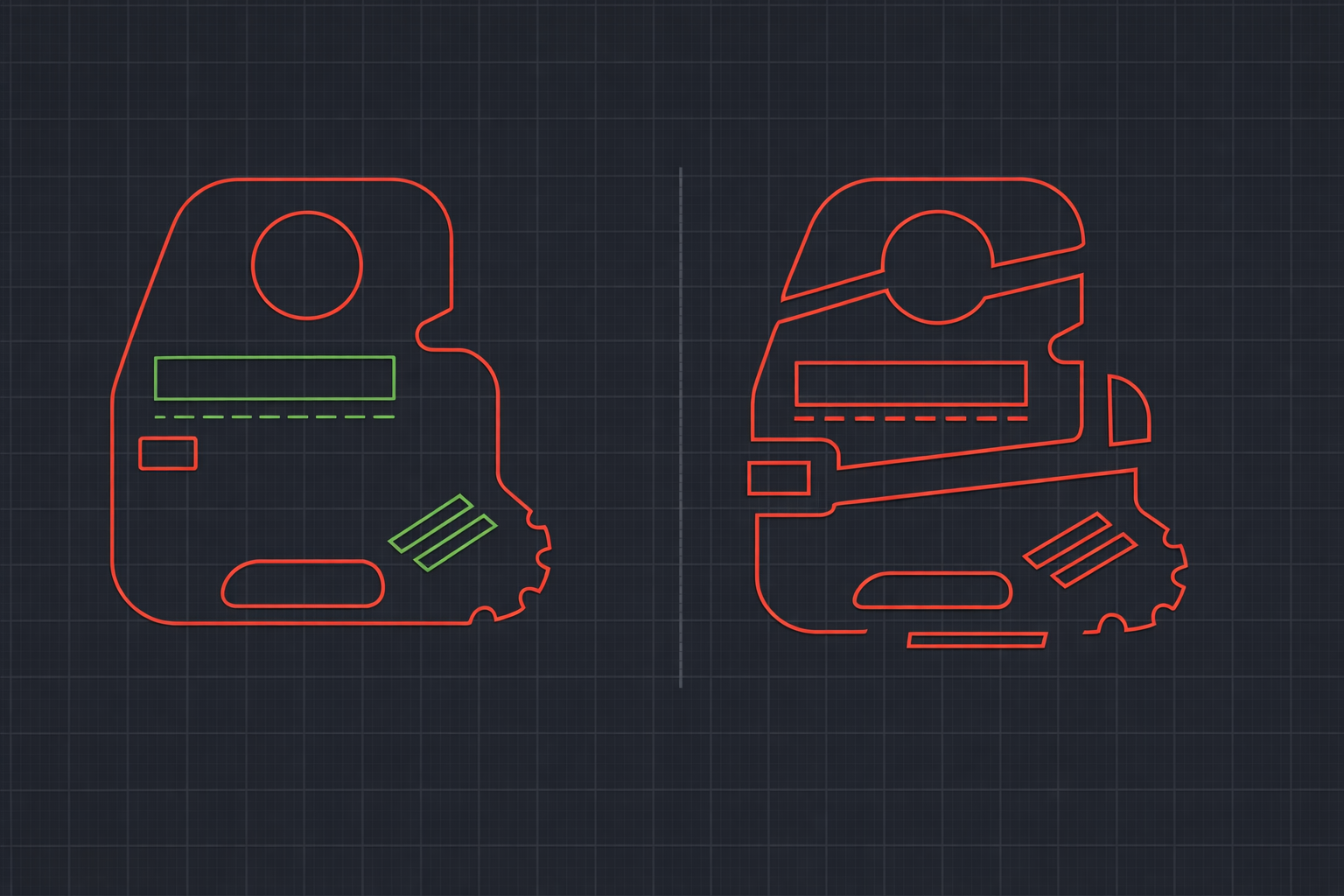
The phone rings. It is the shop floor. "Hey, the laser just cut your dimension text into the part."
If you have worked in a fabrication environment long enough, you have either gotten this call or you know someone who has. The part comes off the laser table with "4.500" physically etched into the steel where a dimension callout was supposed to be reference-only. The bracket has the tolerances carved right into it. The machine did exactly what it was told to do—it just was not told the right things.
This is not a laser problem. It is not a CAM software problem. It is a layer problem. And it starts in AutoCAD, long before the drawing ever reaches the shop floor.
The Path From AutoCAD Screen to Cut Table
To understand how layer mistakes become physical errors, you need to understand what happens to a drawing after it leaves AutoCAD.
A drafter or engineer creates a 2D drawing. It has the part contour, dimensions, notes, bend lines, maybe some construction geometry. On screen, everything looks great. The cut lines are visible, the dimensions are readable, the notes explain what the shop needs to know.
That drawing goes to a programmer. The programmer imports the DWG or DXF into the CAM software—SigmaNEST, Lantek, JETCAM, ProNest, whatever the shop runs. The CAM software reads the file and needs to figure out one critical thing: what gets cut and what does not.
Here is the key: CAM software makes that determination based on layers. Entities on the designated cut layer become toolpaths. Entities on other layers are ignored or handled differently (etch, score, mark). The CAM software does not look at your drawing and think "oh, that is obviously a dimension, skip it." It reads layer assignments.
When layers are wrong, the CAM software processes entities it should not. And when the CAM software processes the wrong entities, the laser cuts the wrong things. That is how you end up with dimension text physically burned into a part.
Common Layer Mistakes That Cause Scrap
After a decade of working with fabrication drawings, I have seen the same mistakes over and over. They are all preventable, and they all come down to entities being on the wrong layer.
Dimensions on the Cut Layer
This is the classic. Someone draws the part contour on a layer called "CUT" or "0" or "CONTOUR." Then they add dimensions. But they forget to switch layers before dimensioning, or they add dimensions while Layer 0 is current and the cut geometry is also on Layer 0. Now the dimensions are on the same layer as the cut geometry.
When this goes to the laser, the CAM software sees dimension lines, extension lines, arrowheads, and the dimension text as geometry to be processed. Depending on how the CAM software handles it, you might get:
- Dimension text etched or cut into the part surface
- Dimension lines interpreted as additional cut paths, creating unwanted slits in the part
- Extension lines cut, adding small nicks at the edge of the part
- The nesting software failing because it cannot create a valid contour from the mixed geometry
I once saw a batch of 40 parts come off the laser with every dimension visible on the surface. Not as ink markings—as actual cuts in the material. Forty parts, scrapped. The material alone was over $800, not counting the machine time and the delivery delay.
Construction Geometry Not Frozen or Deleted
Construction lines, reference lines, layout geometry—whatever you call them, they are lines that exist in the drawing to help the drafter but are not supposed to be manufactured. Center marks for hole patterns. Reference lines for alignment. Temporary geometry used during the design process.
If these are on a visible layer when the drawing goes to CAM, they get processed. A centerline through a bolt pattern becomes a cut line across the part. A construction rectangle used for layout becomes an extra contour that the laser cuts right through the middle of the finished part.
The fix is supposed to be simple: put construction geometry on a CONSTRUCTION layer and freeze it before exporting. But "supposed to" and "actually happens" are different things, especially when a drafter is rushing to meet a deadline and forgets to clean up before sending the file.
Text Mixed With Contour Lines
Part numbers, notes, material callouts, revision markers—all of these are text entities that belong on a TEXT or ANNOTATION layer. When they end up on the same layer as the cut geometry, the CAM software may try to interpret the text outlines as cut paths.
This is especially problematic with exploded text. If someone has used TXTEXP or a similar command to convert text to geometry (for font compatibility or other reasons), those text outlines are now plain polylines. They are indistinguishable from cut geometry to the CAM software. Every letter becomes a little contour that gets cut.
Hatch Patterns on the Cut Layer
Hatching is used to indicate cross-sections, material fills, or surface finishes. It should never be on the cut layer. But when hatches are on the wrong layer, some CAM software will try to trace the hatch boundaries or interpret hatch lines as cut paths. The result varies—sometimes the software ignores it, sometimes it creates dozens of tiny cuts following the hatch pattern, and sometimes it just throws an error and refuses to process the file at all.
Leader Lines and Arrowheads
Leaders pointing to features, callout arrows, balloon numbers—these are annotation elements that include line segments and arrowhead geometry. On the wrong layer, a leader line becomes a short cut path from the part edge to some point in space. An arrowhead becomes a tiny triangle cut into the material. I have seen arrowhead shapes show up on finished parts more than once.
The Real Cost of One Bad Drawing
Let me break down what actually happens when a layer mistake makes it to the shop floor. This is not theoretical—this is a realistic scenario based on what I have seen in real shops.
A drawing for a steel bracket goes to the laser programmer. The dimensions are on the cut layer, but nobody catches it. The programmer imports the file, nests 20 parts on a 4’ x 8’ sheet of 1/4" mild steel, and sends it to the machine.
The laser runs. Twenty parts come off the table. Every single one has dimension text cut into the surface. They are all scrap.
Here is the cost breakdown:
- Material: One sheet of 1/4" mild steel, roughly $150-250 depending on current prices
- Machine time: 30-45 minutes of laser time at $150-300/hour depending on the machine, so $75-225
- Programmer time: 20 minutes to import, nest, and set up the job, plus another 20 minutes to redo it after the scrap. Call it $30-50 of labor
- Delivery impact: If those parts were needed for an assembly shipping today, the delay could cost a late delivery penalty or rush shipping on the replacement parts
- Rework: Someone now needs to go back to the drawing, fix the layers, re-export, re-import into CAM, re-nest, and re-run. Another hour of total time across multiple people
Conservative total for one incident: $300-500. And that is for one drawing with one mistake on one sheet of material. Shops that process dozens of drawings a day from multiple vendors can see this happen multiple times a week if they do not have a system to catch it.
Prevention: Layer Standards That Protect Against Errors
The answer is not "be more careful." Being more careful is the plan that fails every time someone is tired, rushed, or distracted. The answer is a system that makes errors difficult to commit in the first place.
Separate Layers for Every Entity Type
At minimum, a manufacturing drawing should have separate layers for:
- CUT — Primary contour geometry that the laser/waterjet/plasma cuts
- ETCH / MARK — Geometry that gets surface-marked but not cut through
- DIMS — All dimensions and their associated extension lines, leaders, and text
- TEXT — Notes, callouts, part numbers, revision markers
- CONSTRUCTION — Reference geometry that is not part of the manufactured output
- CENTERLINE — Center marks, centerlines for holes and arcs
- BEND — Bend lines for sheet metal parts
- HATCH — Cross-section hatching and fill patterns
Each layer should have a distinct color so you can visually confirm what is on what layer without opening the properties panel. Red for CUT. White for DIMS. Green for CONSTRUCTION. Whatever your shop convention is, make it consistent and make it visible.
Color-Coding as a Visual Safeguard
Color is the fastest visual check you have. If your cut geometry is always red and your dimensions are always white, a drafter can glance at the drawing and immediately see if something is wrong. If there is white text sitting among red cut lines, something is off. If a red line is running through the middle of a dimension, something got assigned to the wrong layer.
This only works if the standard is enforced consistently. The moment someone sets an entity color to "ByBlock" or overrides the layer color, the visual check breaks down.
Freeze Non-Cut Layers Before Export
A simple habit that prevents a lot of problems: before you send a drawing to the shop, freeze every layer except CUT (and ETCH/MARK if applicable). Then do a SAVEAS to create the version that goes to programming. This way, even if the programmer forgets to check layers, the frozen layers will not export geometry that should not be cut.
The problem is that this is a manual step, and manual steps get forgotten. Especially on a Friday afternoon when there are 12 drawings to send out before the end of the day.
Automating Layer Compliance
Manual standards are only as reliable as the humans following them. And humans are not reliable—not because they are careless, but because they are human. They get busy, they get interrupted, they make assumptions.
This is where automated layer auditing makes a real difference. Instead of relying on a drafter to check every entity on every layer before exporting, software can scan the drawing and flag problems automatically.
LayerGuard was built specifically for this workflow. Its AuditOnly mode scans a drawing and reports layer compliance issues without modifying anything. It answers the question: "Is this drawing safe to send to the shop?"
The kinds of things it catches:
- Dimension entities on the cut layer
- Text entities on the cut layer
- Hatch entities on the cut layer
- Entities with ByBlock properties that will behave unpredictably
- Layers that do not match the expected standard
- Everything piled on Layer 0 with no classification
Think of it as a spell-checker for layer assignments. You would not send an important email without running spell-check. You should not send a drawing to the shop floor without running a layer audit.
For drawings that have layer problems, LayerGuard’s Repair and RebuildToStandard modes can automatically reclassify entities onto the correct layers based on their entity type and properties. A drawing where everything is on Layer 0 gets separated into proper layers. A drawing with non-standard layer names gets normalized. The drafter reviews the result, makes any manual adjustments for edge cases, and sends a clean file to the shop.
Building the Check Into Your Workflow
The most effective way to prevent layer-related cutting errors is to make the check unavoidable. Here are some practical ways to do that:
Gate the Handoff
Do not let a drawing go from the drafting department to programming without a layer check. This can be as simple as a checkbox on a traveler that says "Layer audit passed" or as formal as requiring a LayerGuard audit report attached to the job packet.
Check at Receipt, Not at Programming
If you receive vendor drawings, check them when they arrive, not when the programmer opens them. A drawing that fails the layer check at 9 AM can be sent back to the vendor for correction by 9:15 AM. A drawing that fails at 3 PM when the programmer is trying to get a job on the machine for the night shift creates an emergency.
Train the CAM Programmers Too
Even with upstream checks, programmers should know how to spot layer issues. A 30-second visual check—"does this drawing look right? Are there dimension lines in the cut geometry?"—is the last line of defense before the laser fires.
Your Laser Should Only Cut What You Intend It To
Layer management is not glamorous work. Nobody gets excited about assigning entities to the correct layer. But it is the difference between a part that comes off the machine correctly and a part that goes in the scrap bin. It is the difference between a $200 delivery and a $700 mistake.
The good news is that this is a solved problem. You do not have to rely on memory, habits, or hoping someone remembers to check. Layer standards give you the structure. Automated auditing gives you the enforcement. Together, they catch errors before those errors become scrapped parts, wasted material, and missed deadlines.
Your laser should only cut what you intend it to. Everything else belongs on a different layer—or better yet, frozen and invisible before the file leaves your desk.